Upload Media
Upload images and other files to your Datasquirel media storage folders.Overview
You can upload any file type to Datasquirel media storage through the admin panel. Uploaded images are automatically given a thumbnail. All uploaded files are served by a dedicated static file server.
Steps
1. Open the Media Page
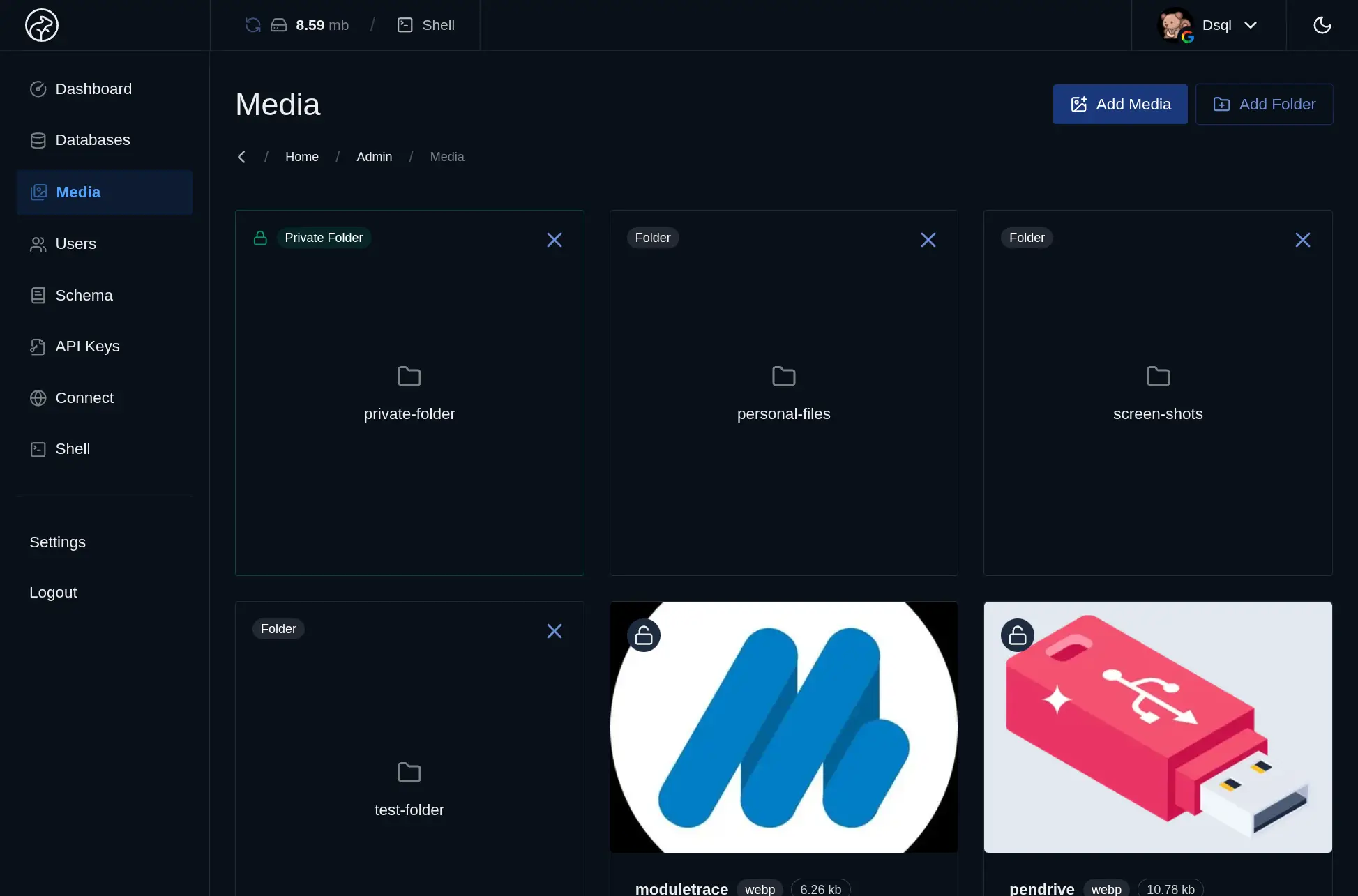
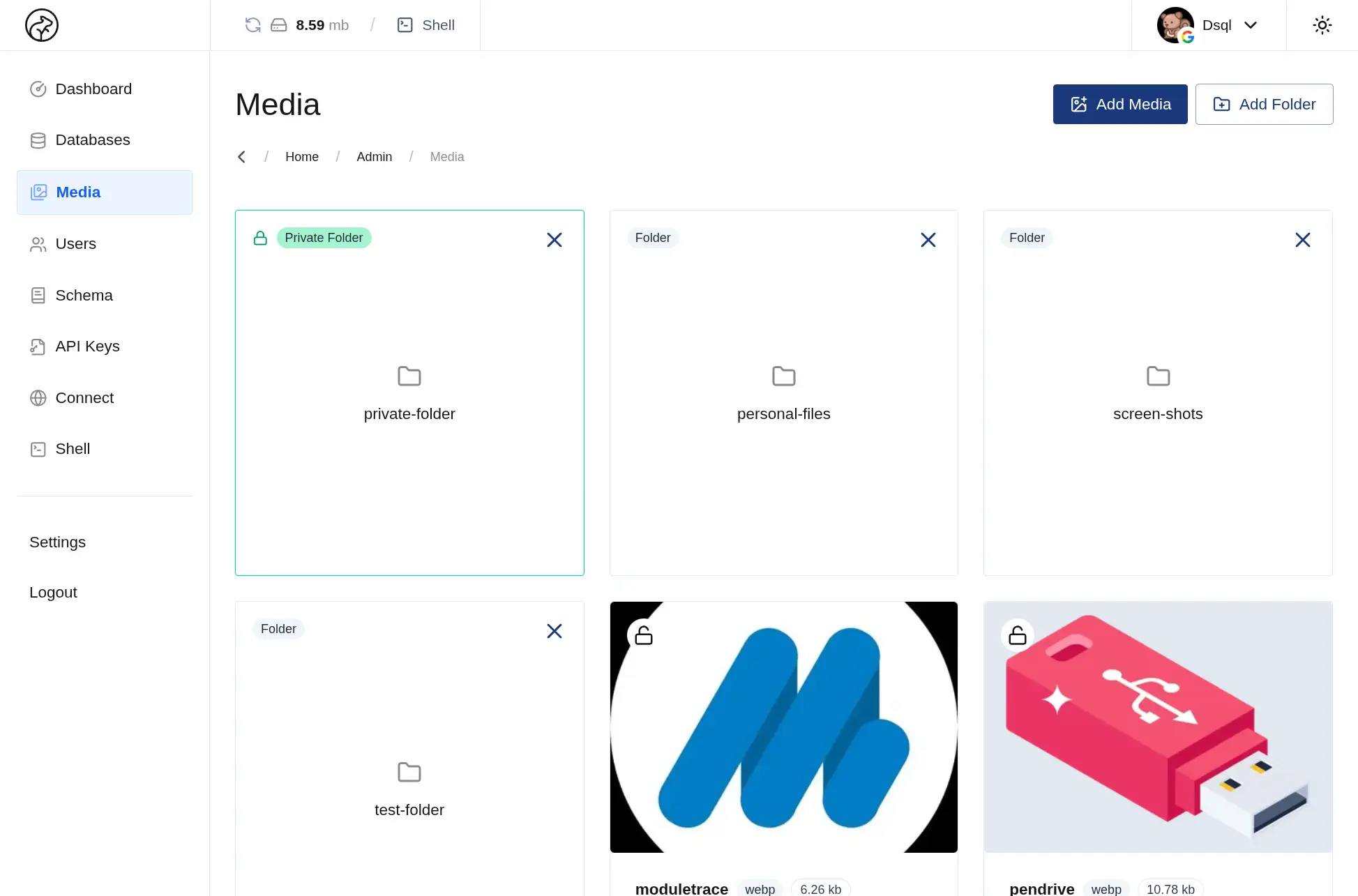
Click Media in the admin panel sidebar to open the media management page.
2. Select or Create a Folder
Choose an existing folder from the list or create a new one by clicking Add Folder. Folders keep your files organized and control public/private access at the folder level.
3. Open a Folder
Click on a folder to open it and see its files.
4. Upload a File
Click Upload (or drag and drop a file into the folder view). You can upload multiple files at once.
Supported file types include images (JPEG, PNG, WebP, GIF, SVG), documents (PDF), and any other file type.
5. Copy the File URL
Once uploaded, the file appears in the folder. Click on a file to copy its URL. For public folders, this URL can be used directly in your application.
Uploading via the API
You can also upload files programmatically using the media API. See API Reference → Media → POST for details.
Notes
- Image thumbnails are generated automatically on upload.
- File names are stored as uploaded. Avoid special characters in file names.
- To move a file to a different folder, delete it and re-upload it to the target folder.
- Deleting a folder deletes all files inside it permanently.