Create a Database
Add a new database to your Datasquirel account using the web admin panel.Overview
A database is a named container that holds one or more tables. Each Datasquirel account can have multiple databases, and each database is isolated from the others — API keys can be scoped to specific databases.
Steps
1. Open the Databases Page
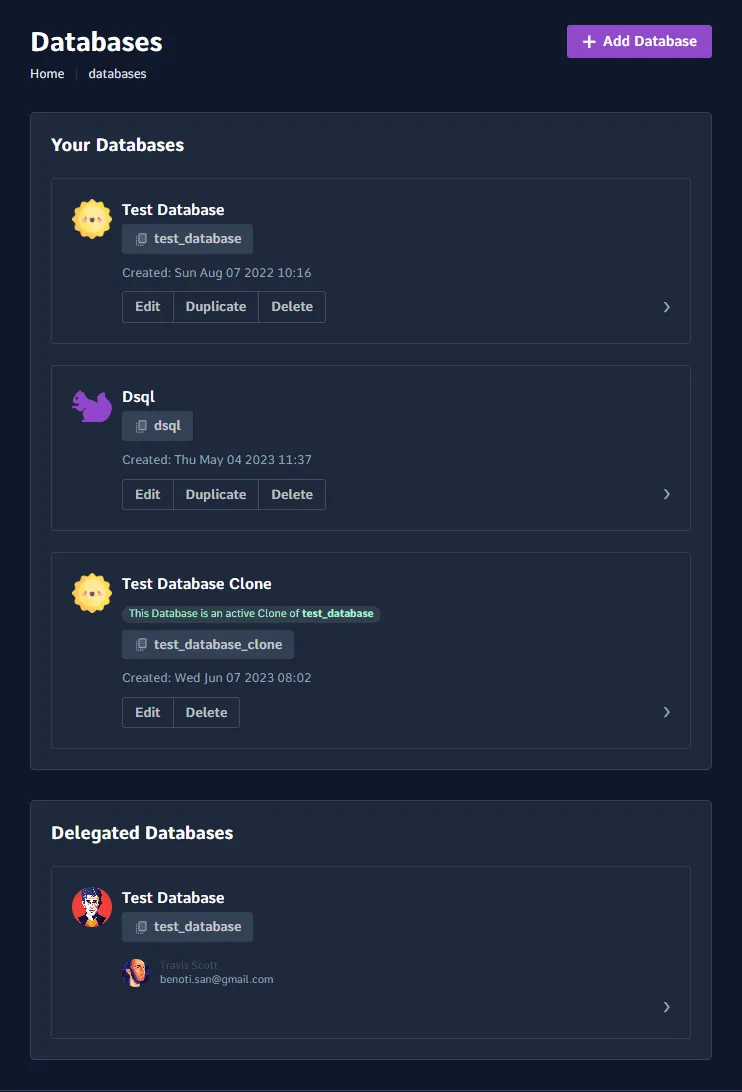
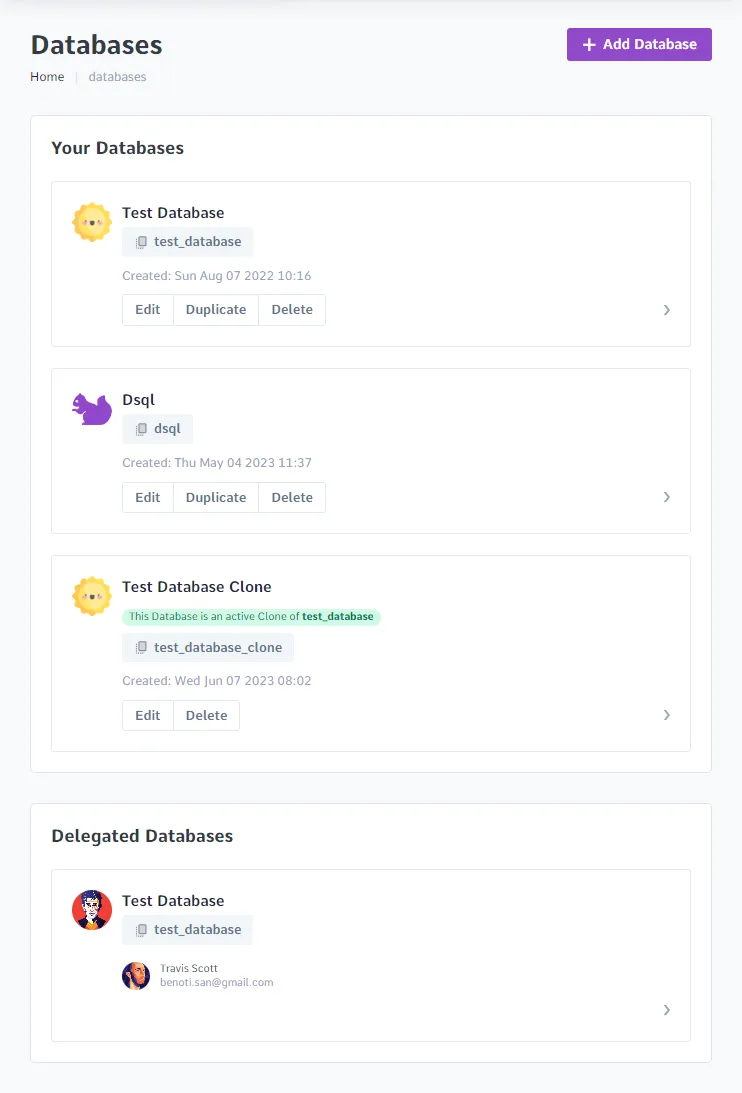
Log in to your admin panel and navigate to Databases in the sidebar, or go to /admin/databases.
2. Click Add Database
Click the Add Database button at the top of the databases list.
3. Fill in the Database Details
A form will appear. Fill in the required fields:
- Database Name — a unique name for the database. Use lowercase letters, numbers, and underscores (e.g.
social_network). - Description (optional) — a short description of the database.
- Image (optional) — an image to display on the database card.
4. Create the Database
Click Create Database. You will be taken to the new database page where you can start creating tables or import an existing database from an SQL file.
What's Next
- Create a Table — add your first table to the database
- Create Table Fields — define the columns for your table